Go to login.navigate.uk.com
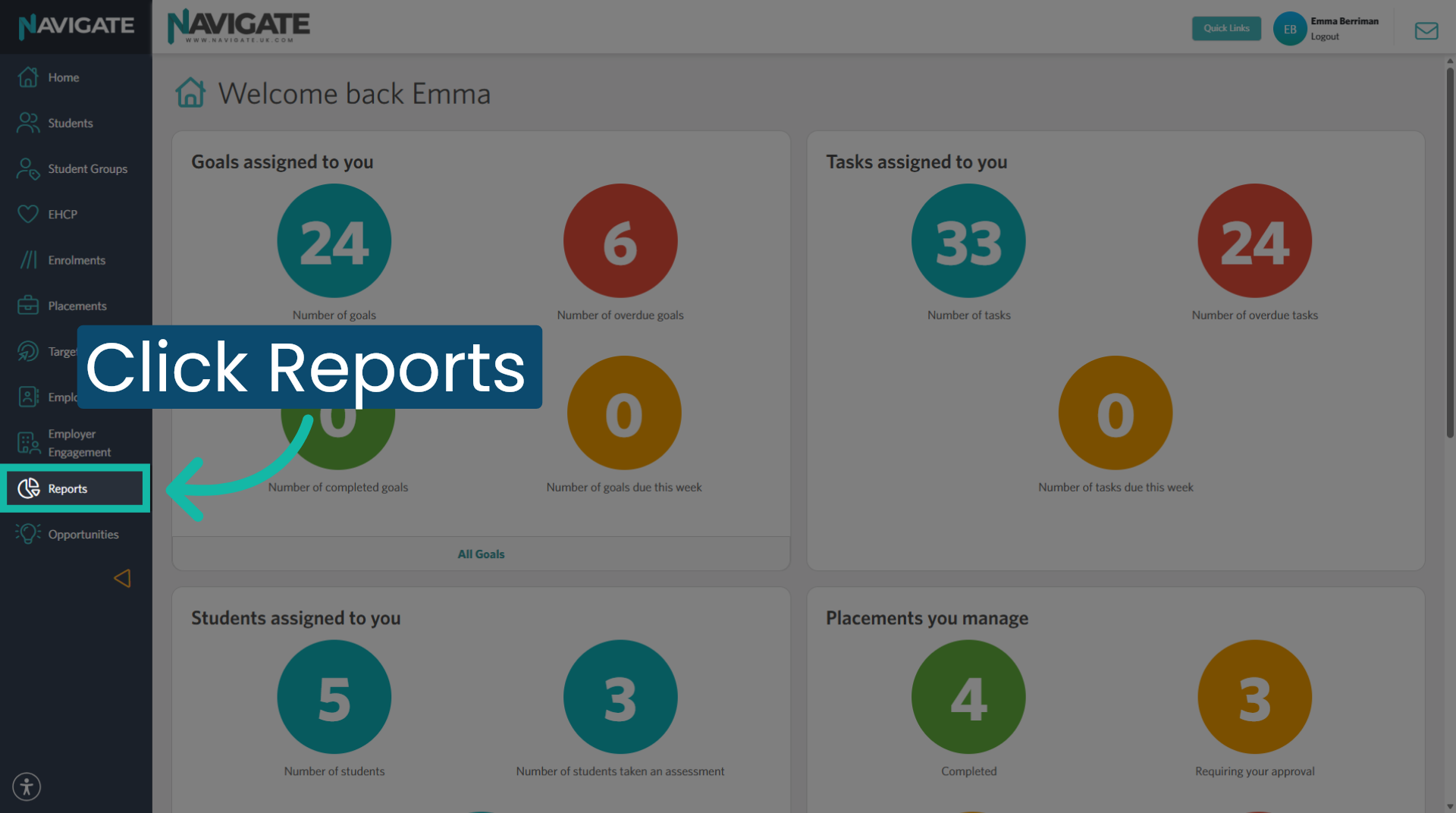
1. Open Reports Module
Once logged in, click 'report' to open the reports module.
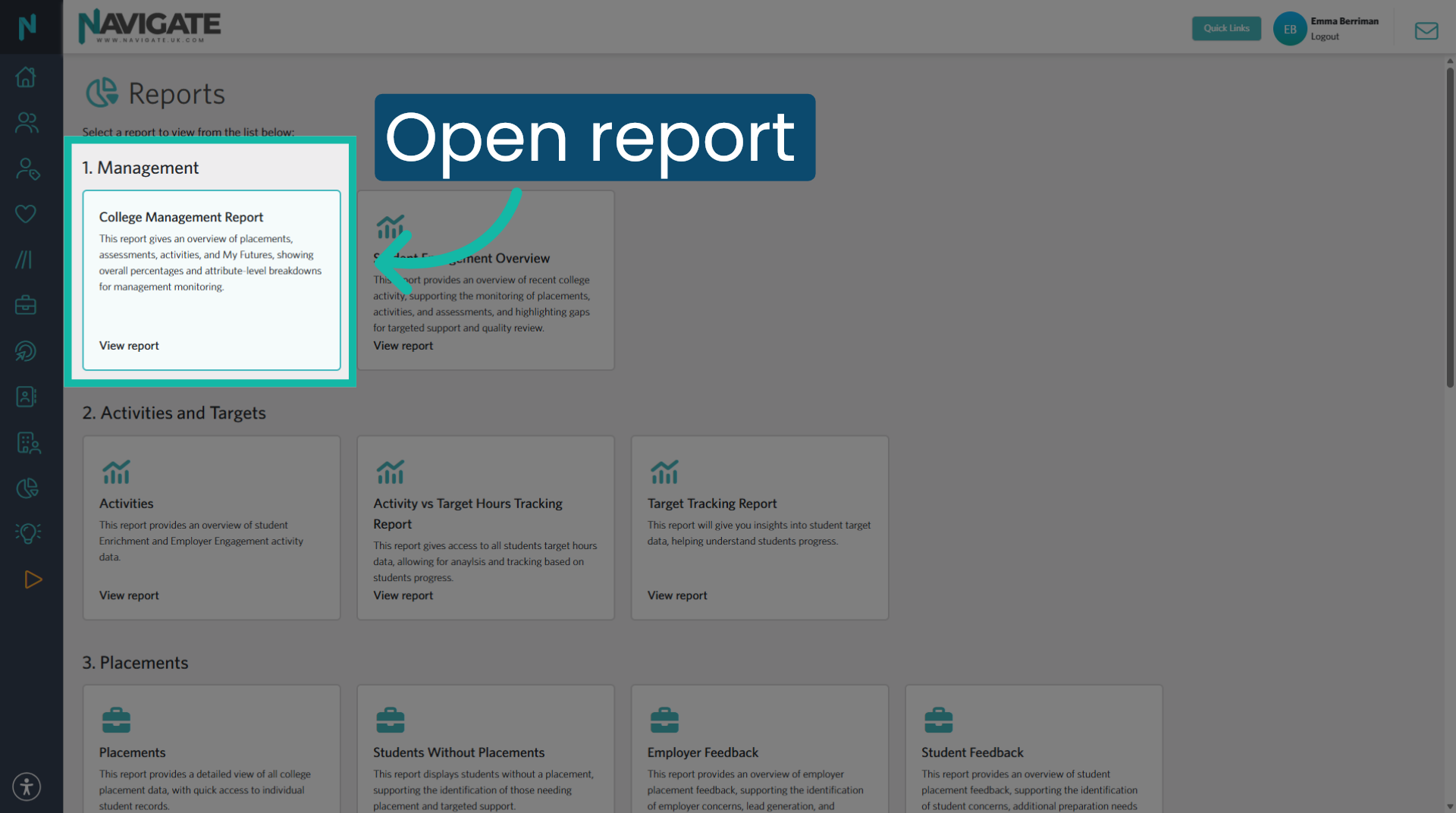
2. Select the College management report
Select the college management report.
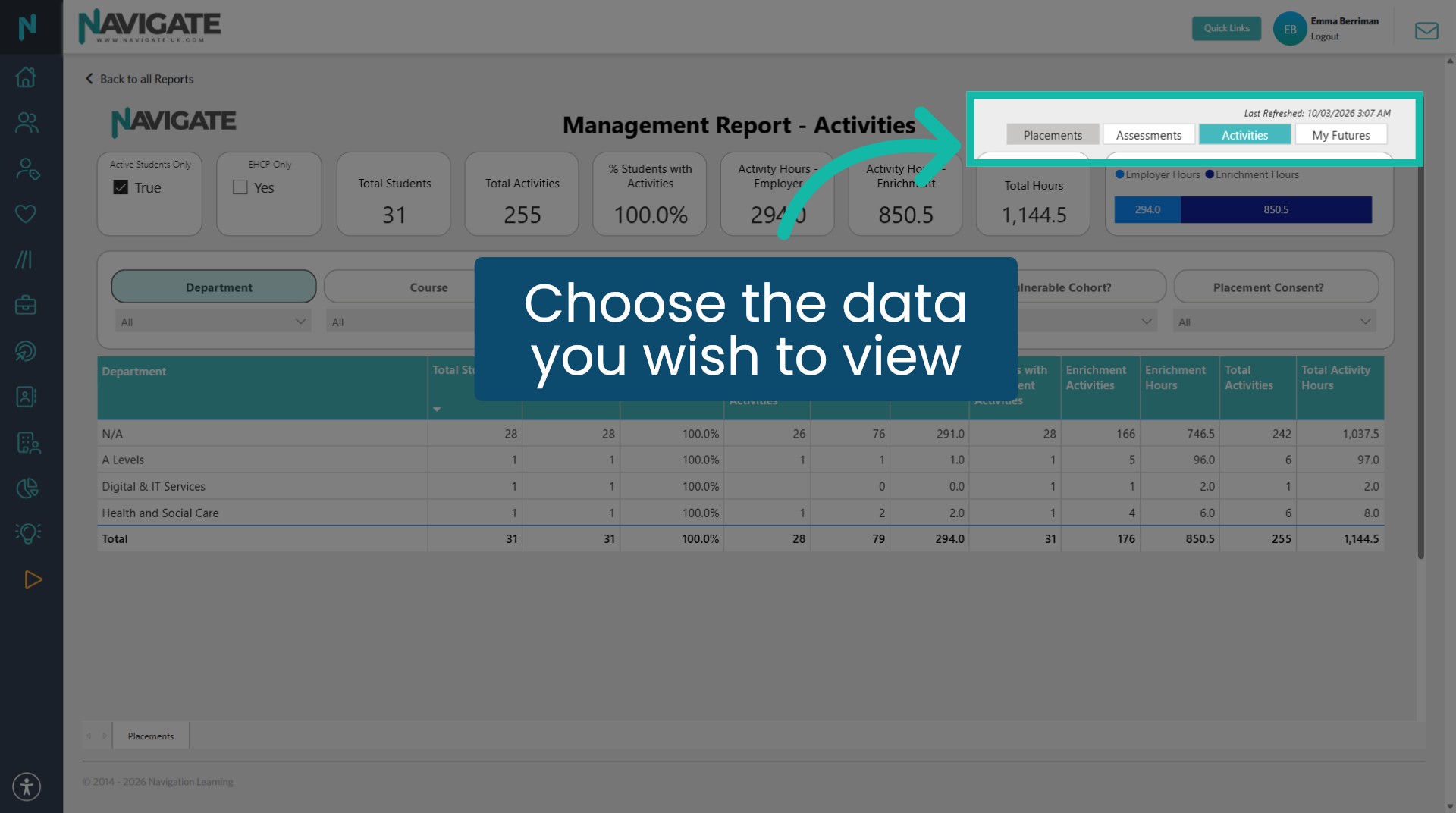
3. Choose the report
There are four data reports to choose from: placements, assessments, activities and my future.
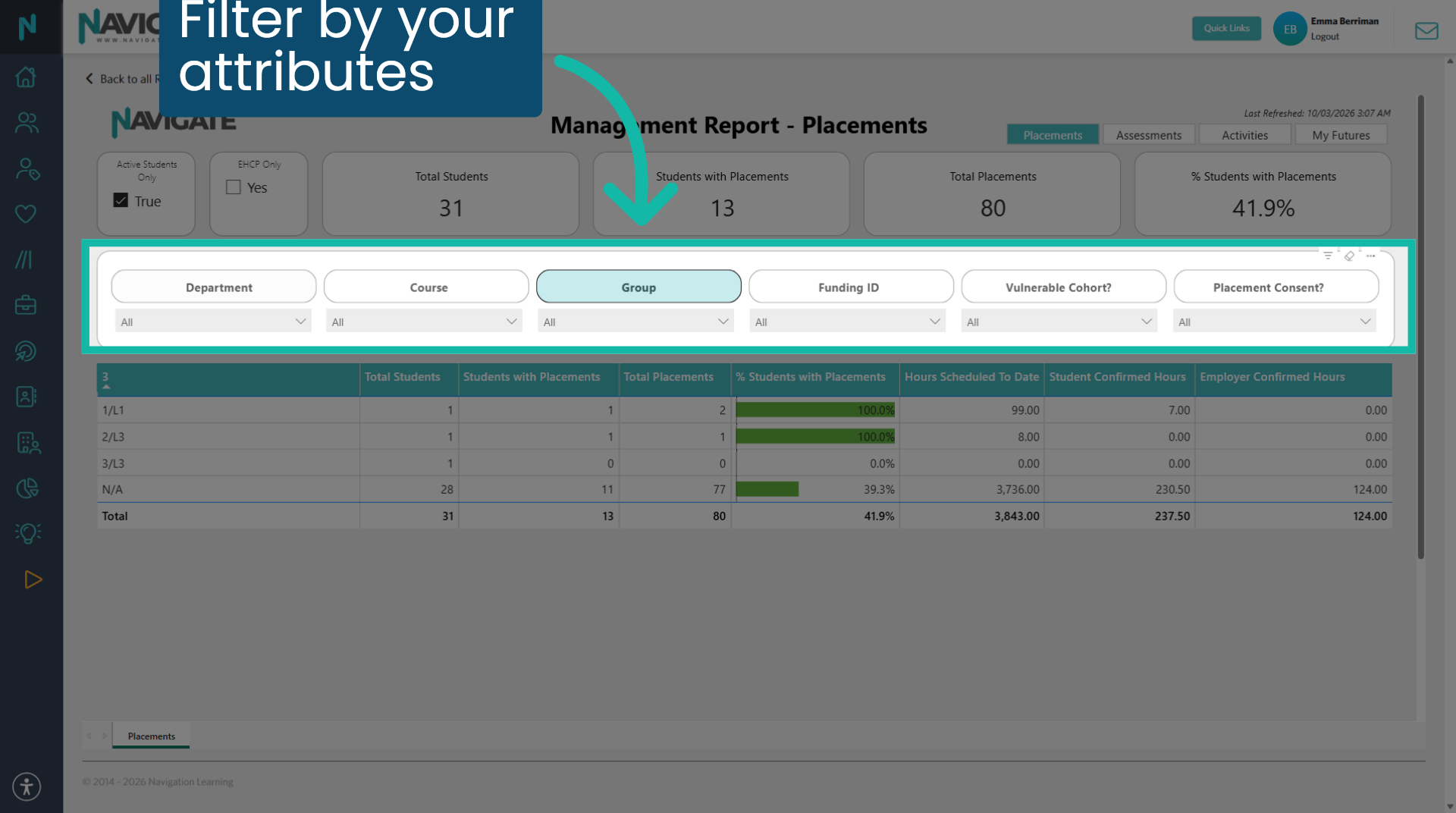
4. Filter by your attributes
You can filter by the different attributes your college has selected.
5. Assessments report
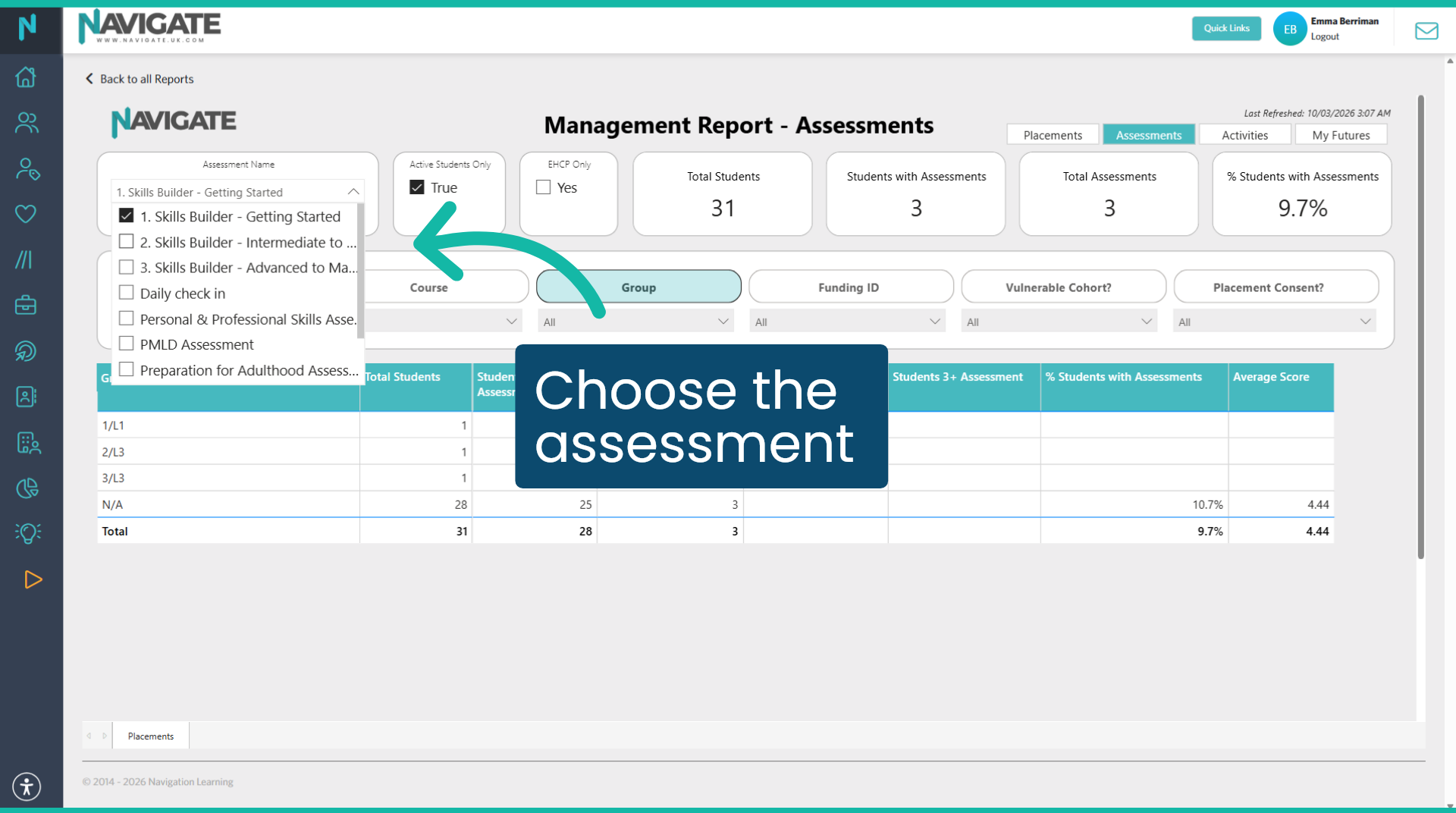
If you are viewing assessment data, you will need to choose the assessment you wish to see.
6. View more than one assessment
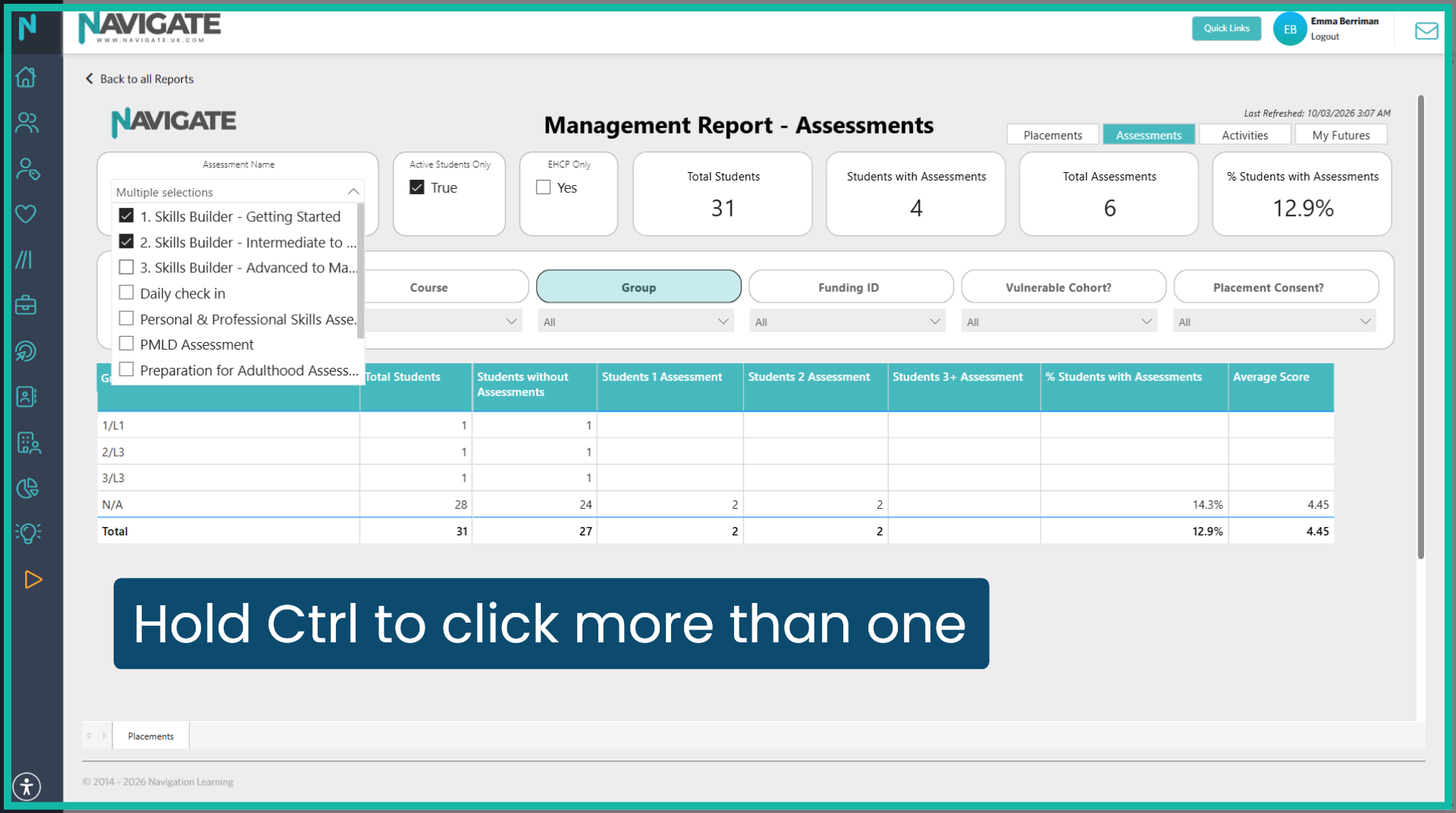
To view the data for more than one assessment. Hold Ctrl and click further boxes.
7. EHCP student data
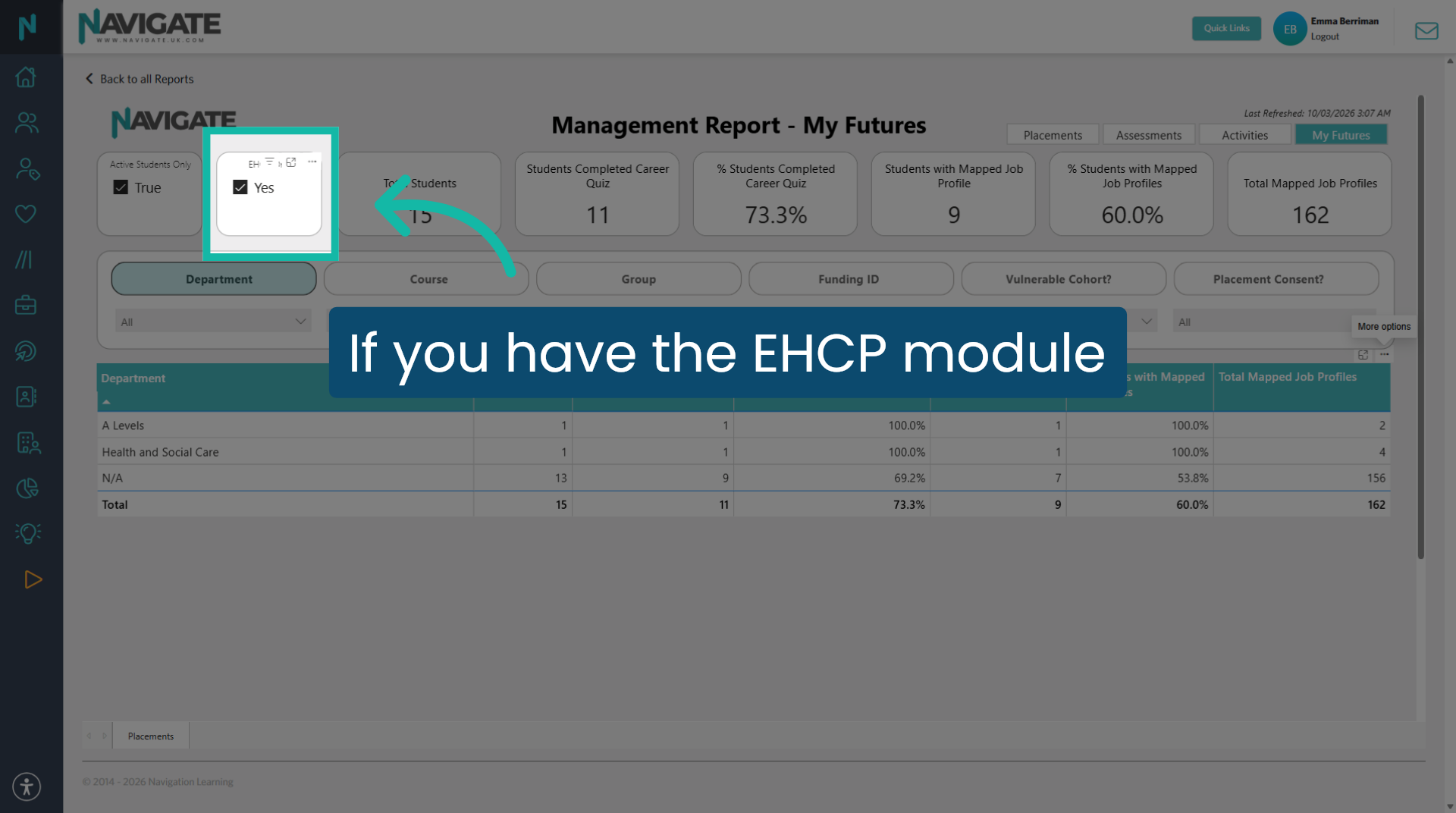
If your college has opted for the EHCP. Module checking 'yes' on the EHCP button will allow you to only view data for these students.
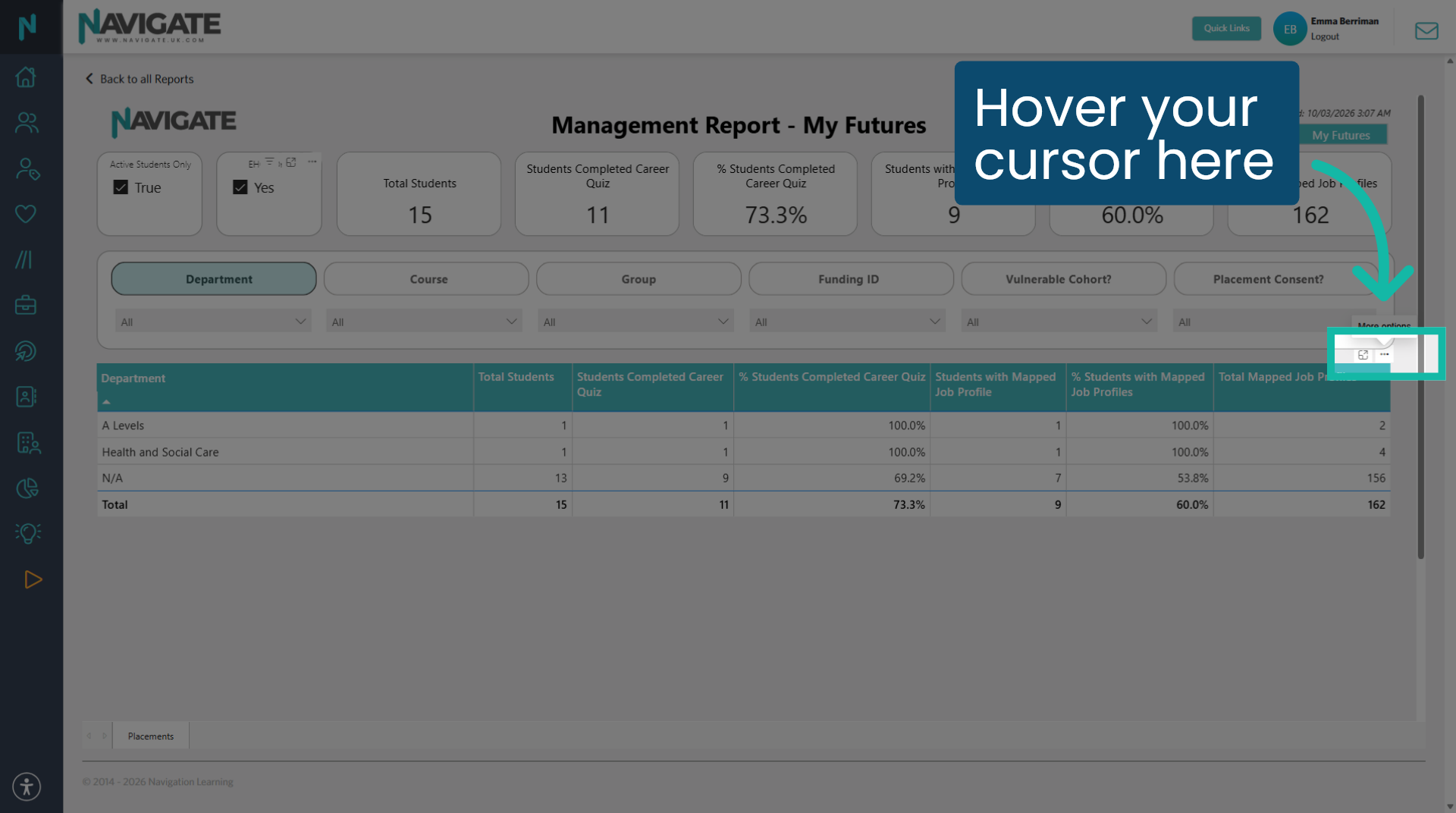
8. Download data
To download any of your data as an Excel spreadsheet. Hover your cursor over the top right-hand corner of the grid. Click the three ellipses to export.