Go to www.navigate.uk.com
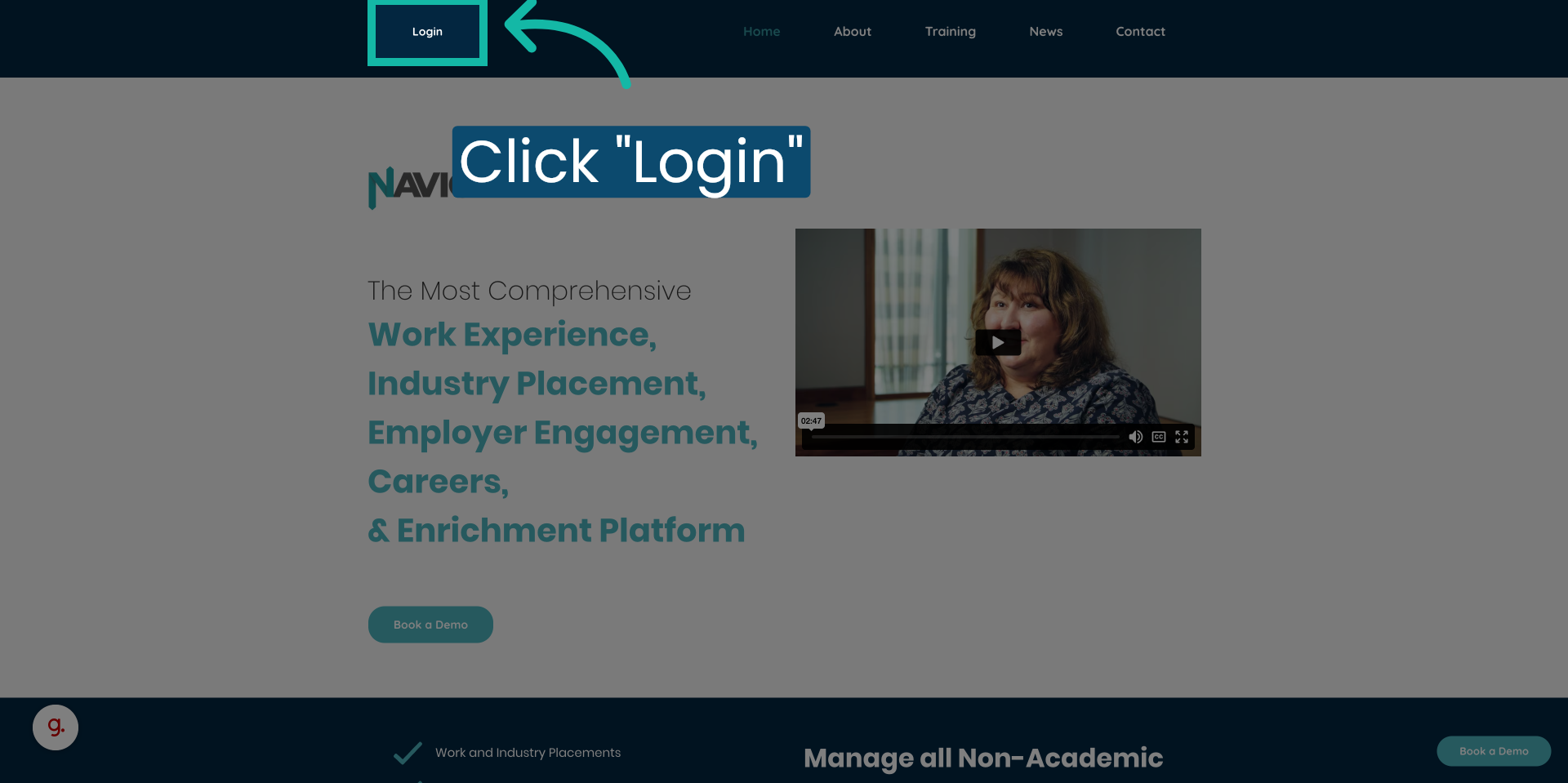
1. Click "Login."
Begin by navigating to the login page of the platform to log into your account.
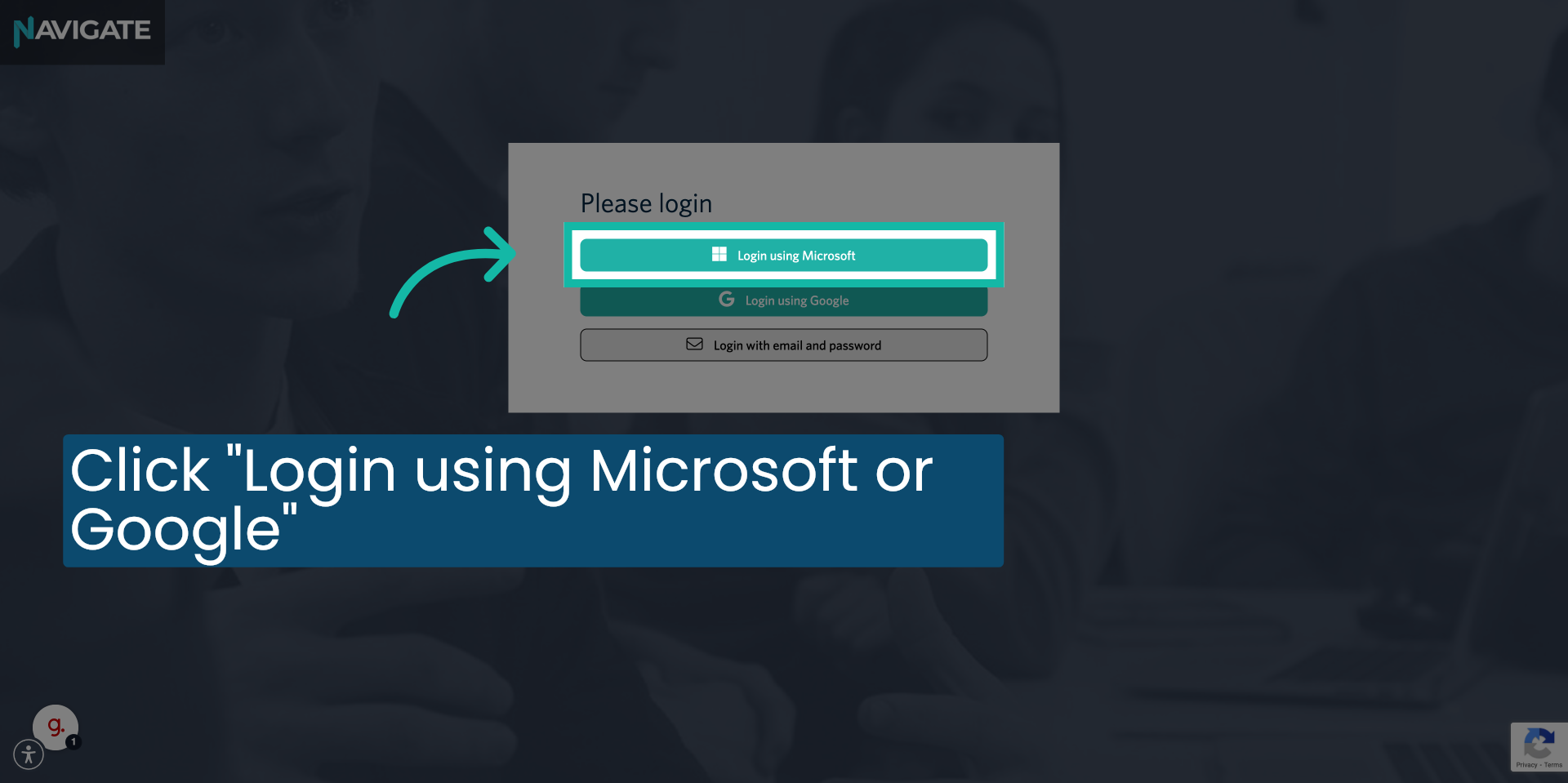
2. Click "Login using Microsoft or Google"
Choose the option to log into your account using your college Microsoft or Google credentials.
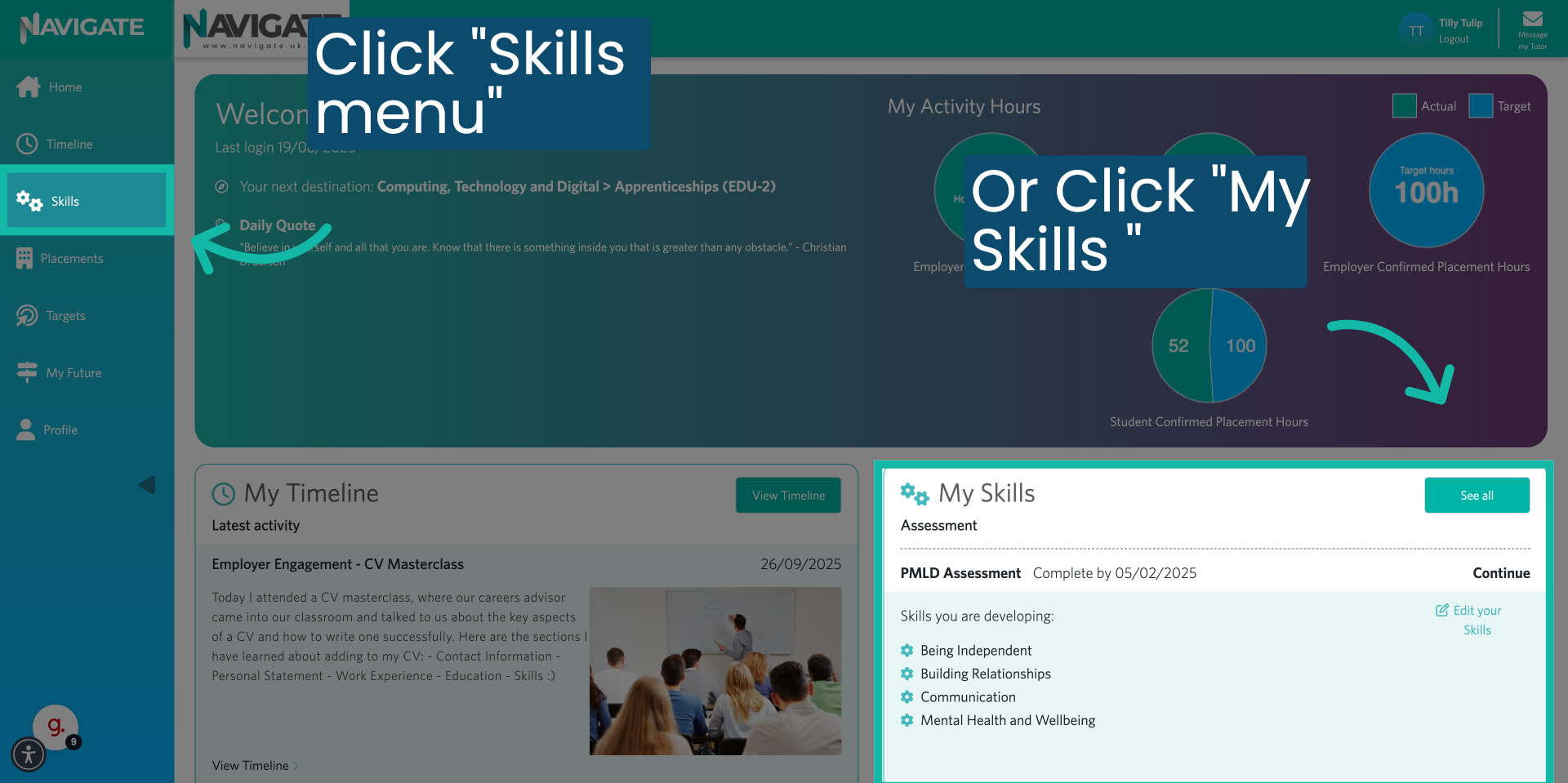
3. Click "Skills."
Click on either the skills in the sidebar menu or my skill section in the main dashboard to manage your assessments.
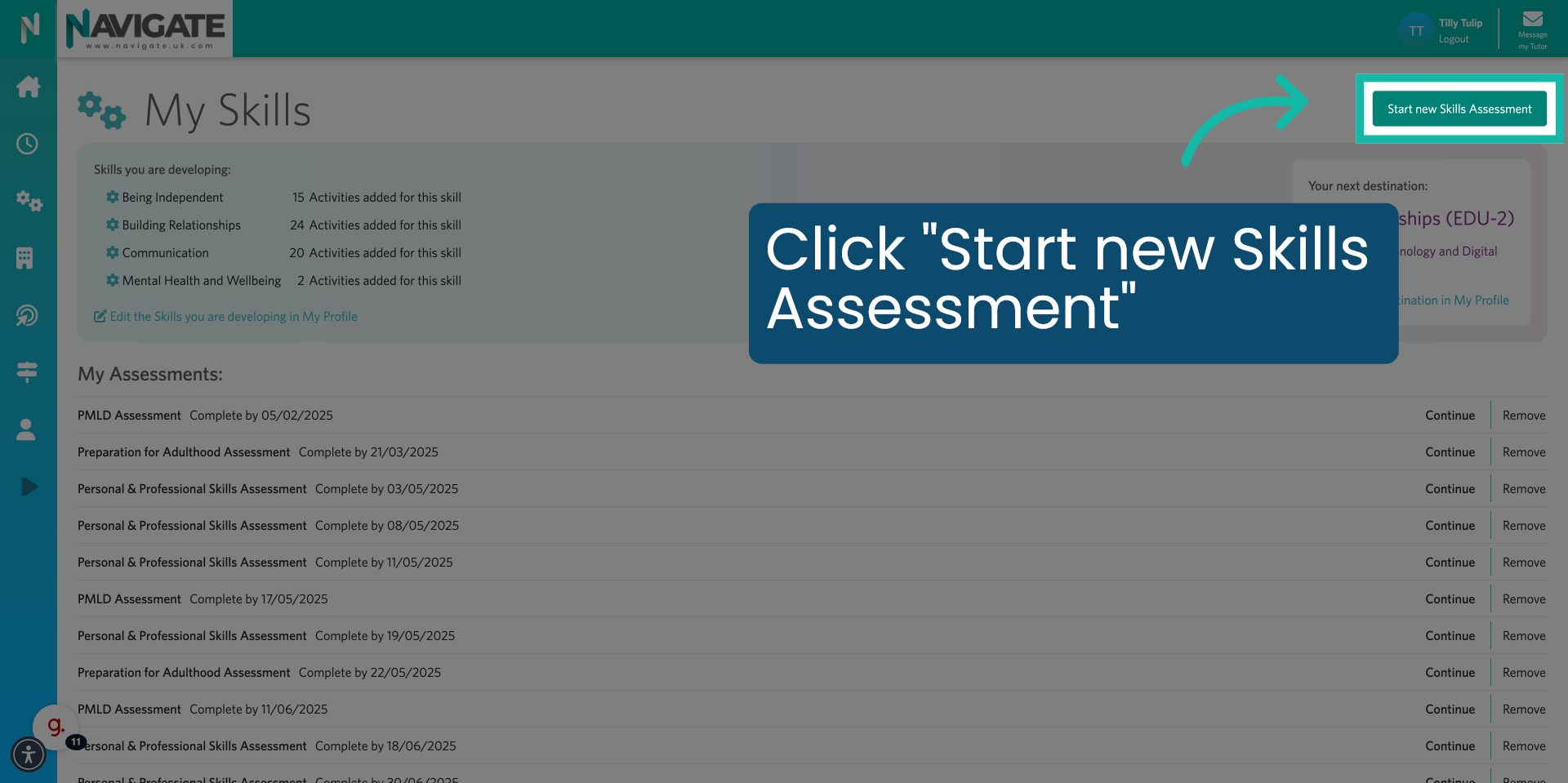
4. Click "Start new Skills Assessment."
Start a new skills assessment. By clicking on the start new skills assessment button.
5. Click "Select the date you aim to complete the assessment by"
Choose when you would like to complete the assessment by opening the date selector and choosing a date.

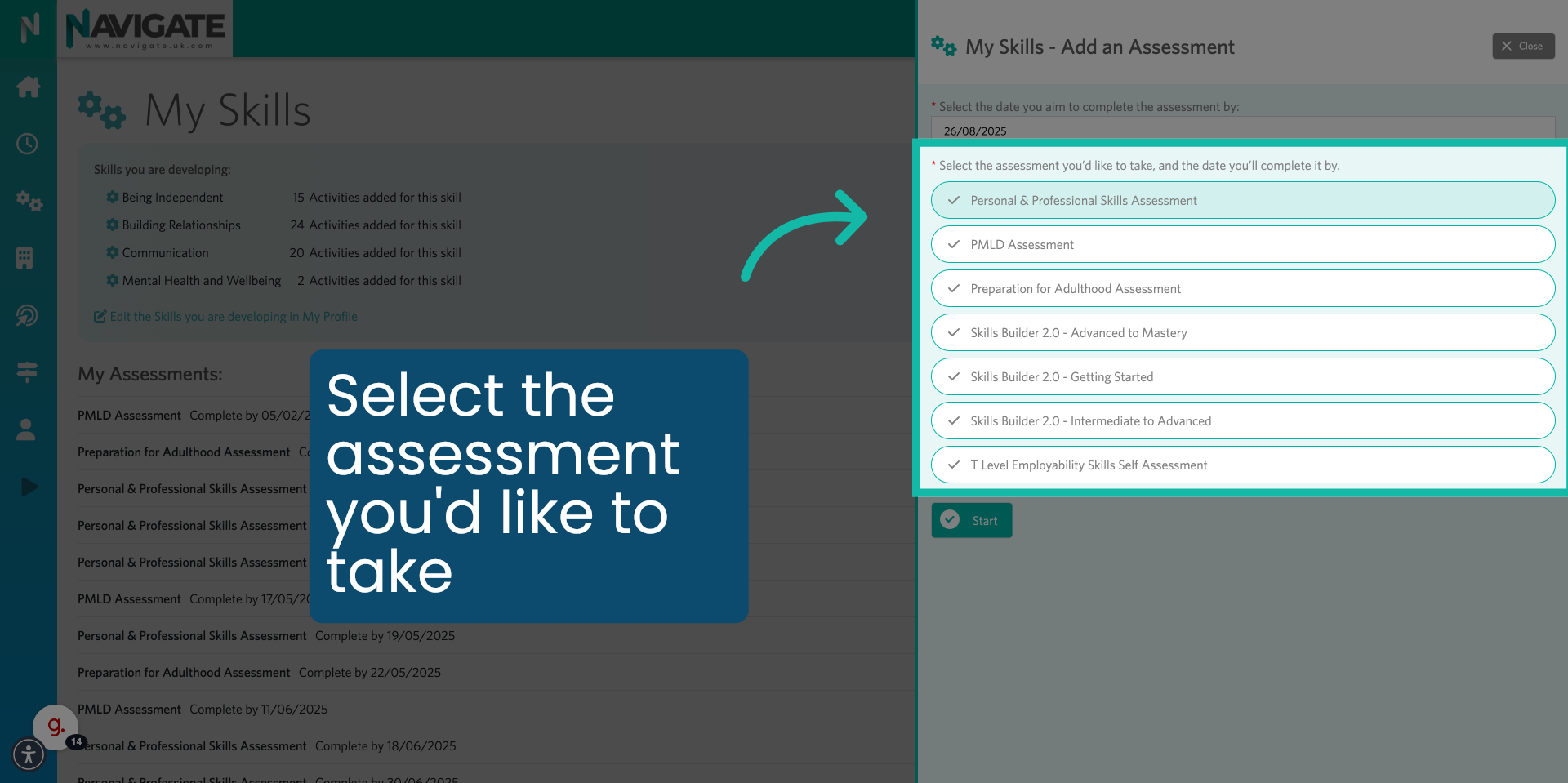
6. Click "Personal & Professional Skills Assessment."
Select the assessment you would like to take.
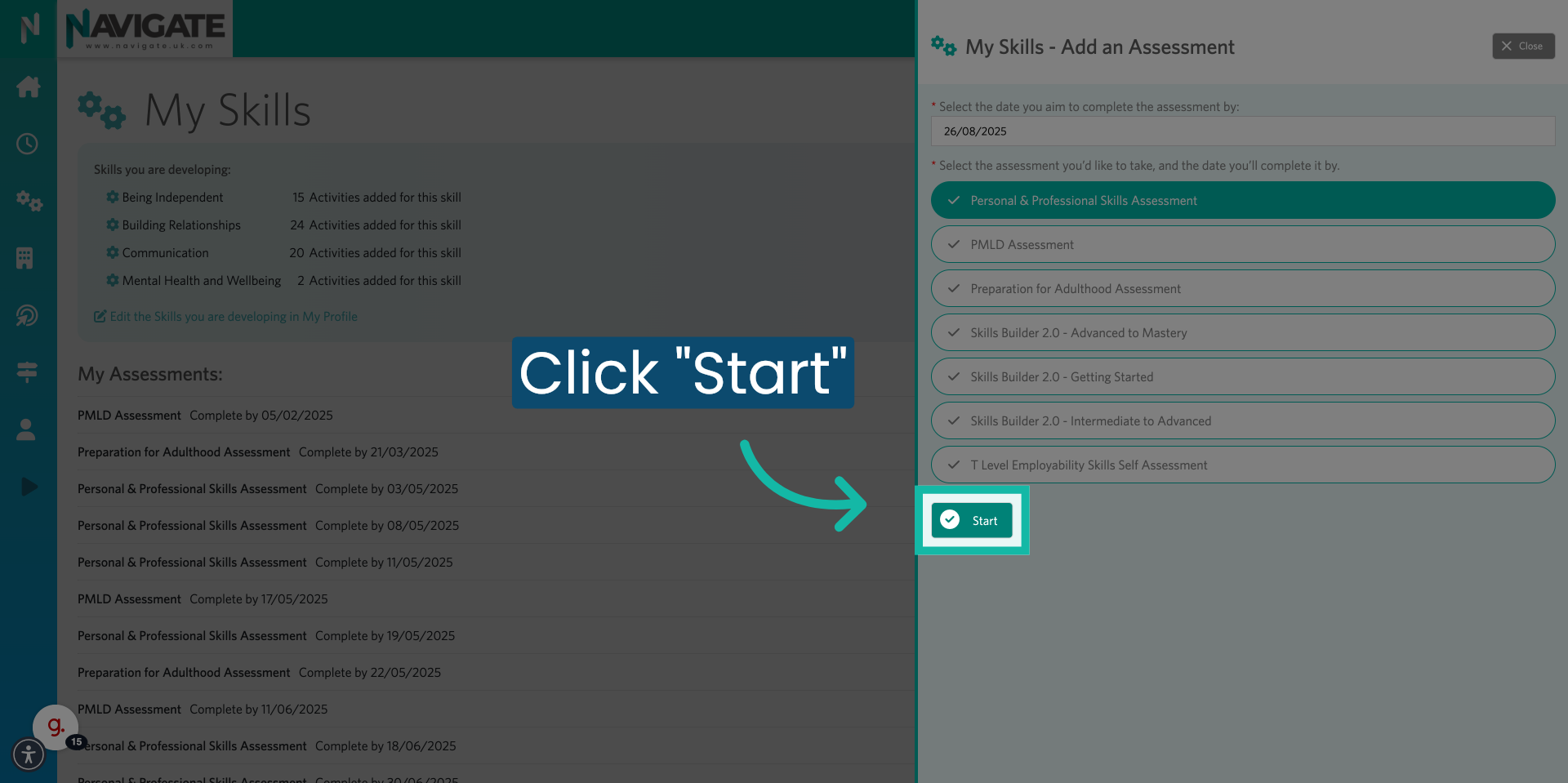
7. Click "Start"
Start the assessment by clicking on the start button.
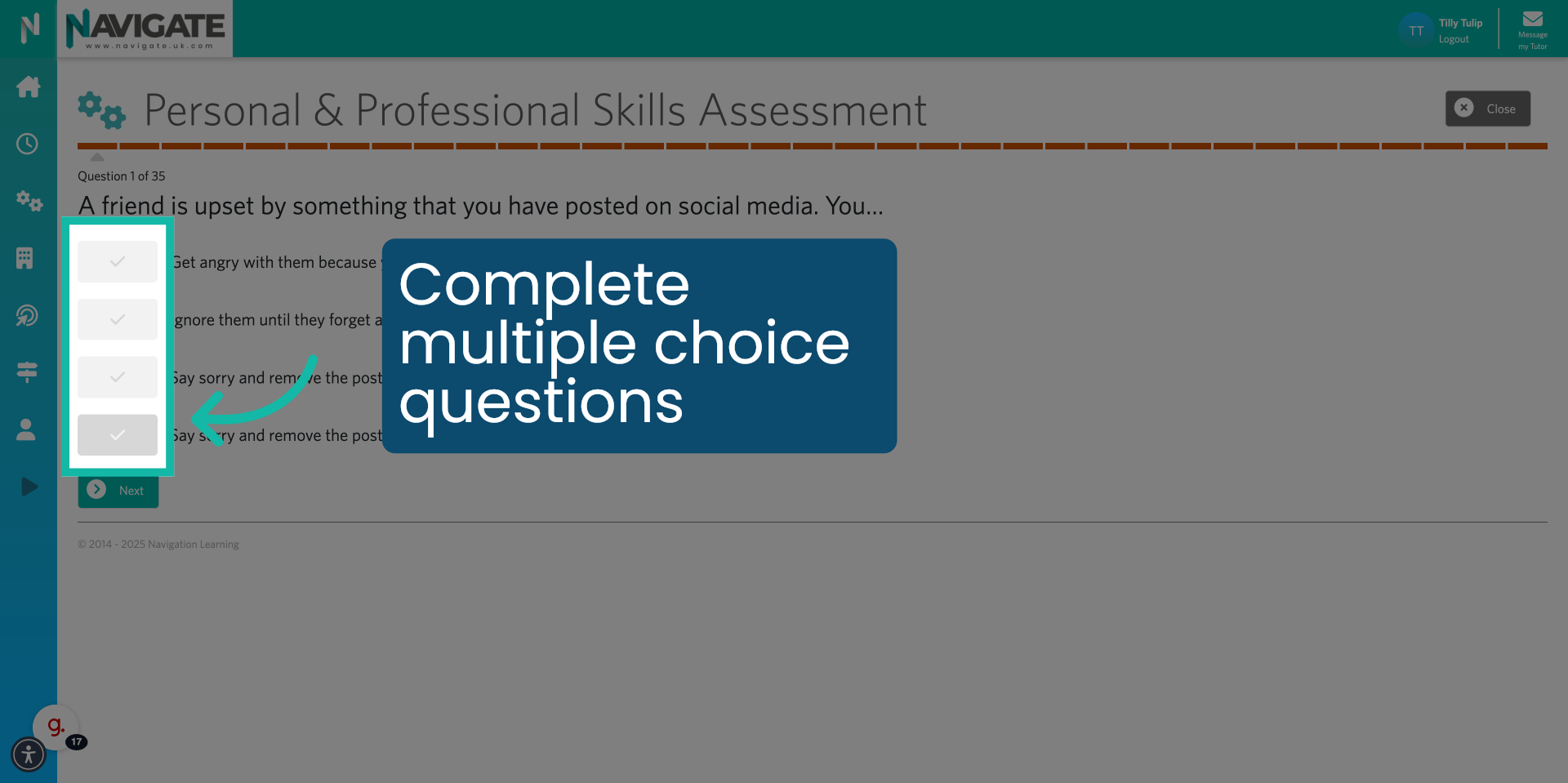
8. Complete Multiple Choice Questions
Read the question carefully and then answer by selecting either option a, b, c, or d.
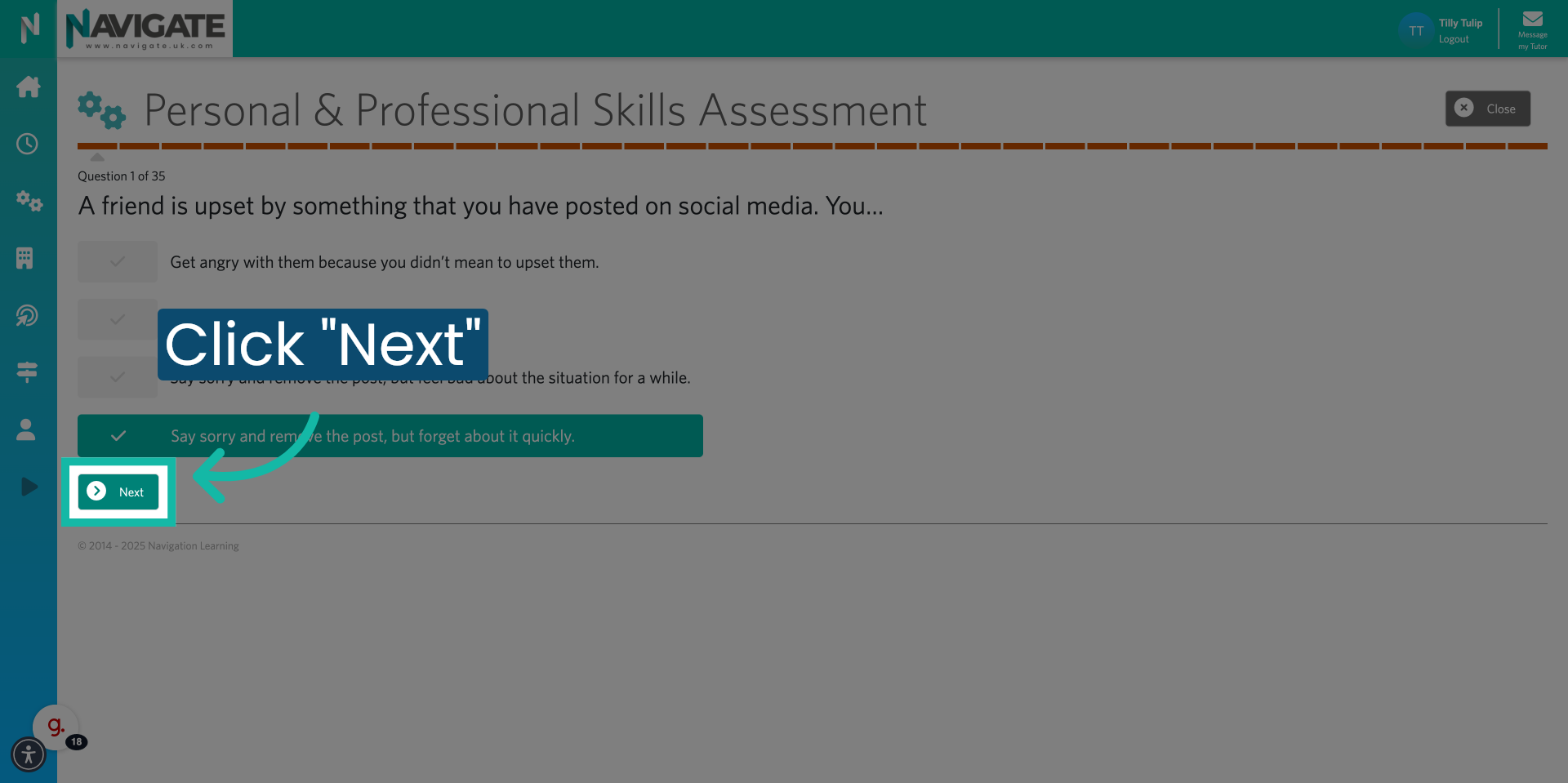
9. Click "Next" to go to the next question
Move to the next question by clicking the next button.
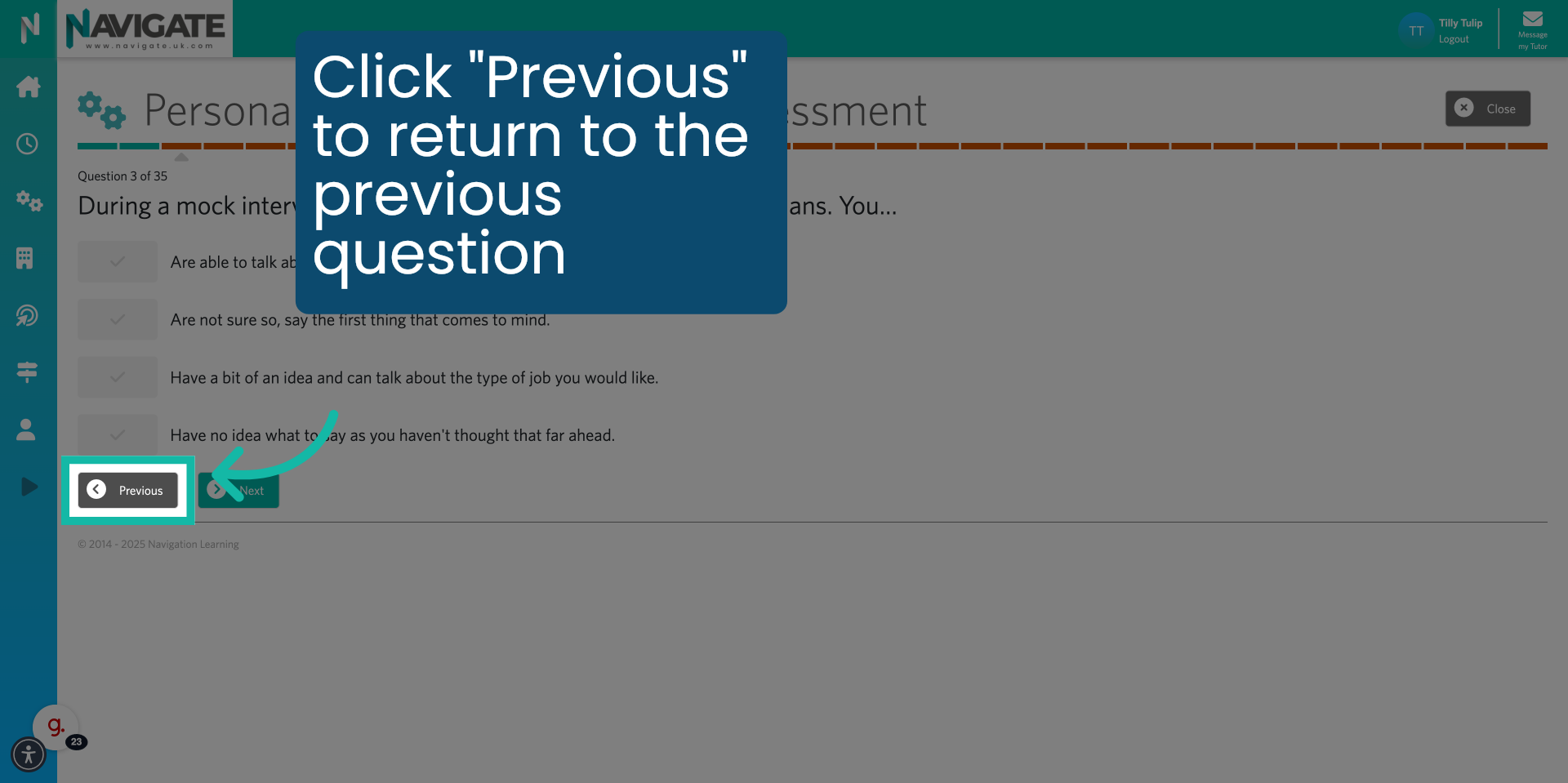
10. Click "Previous" to go back
Use the previous button if you need to review or edit earlier answers.
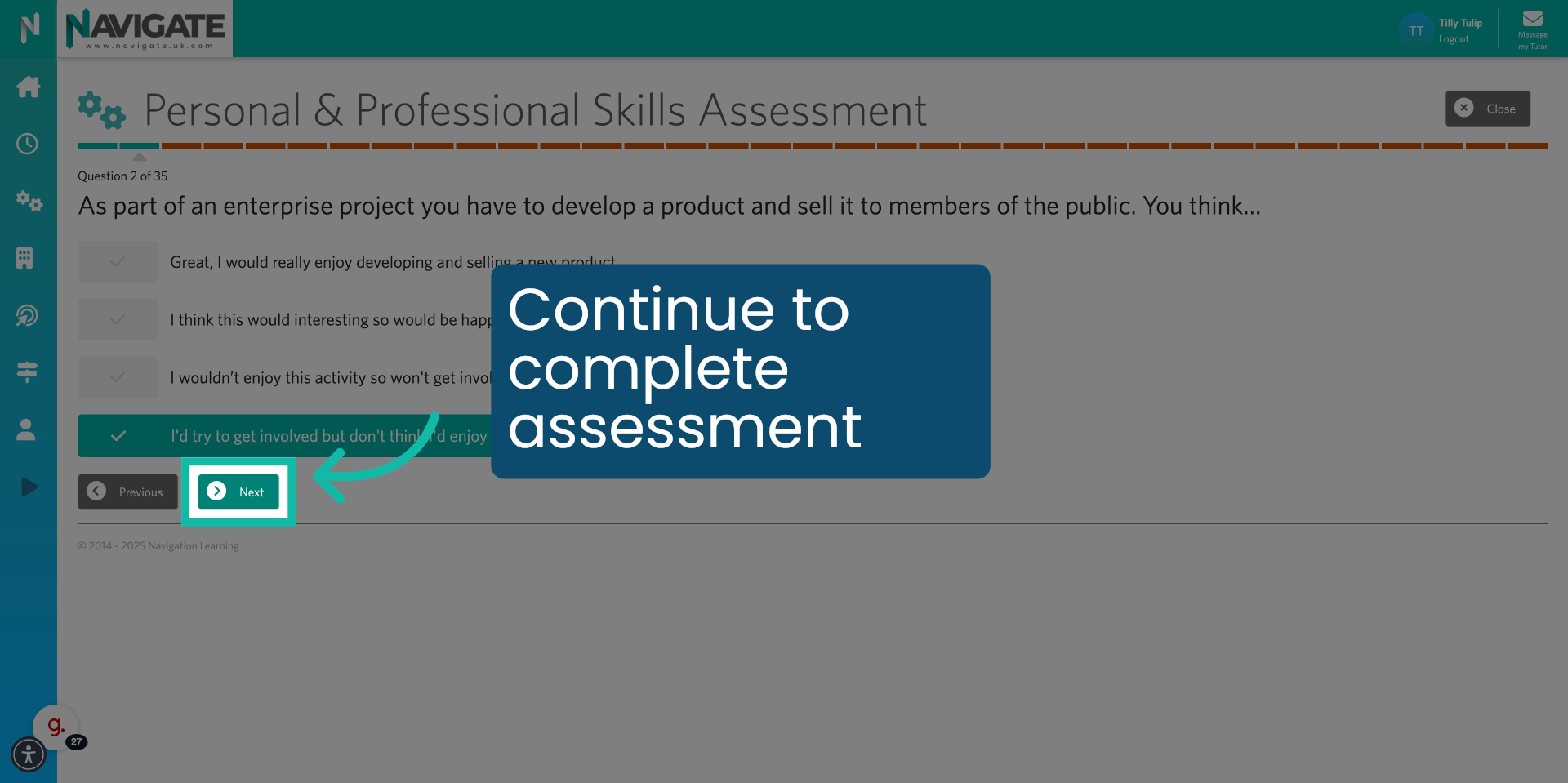
11. Click "Next"
Answer all questions to complete the assessment.
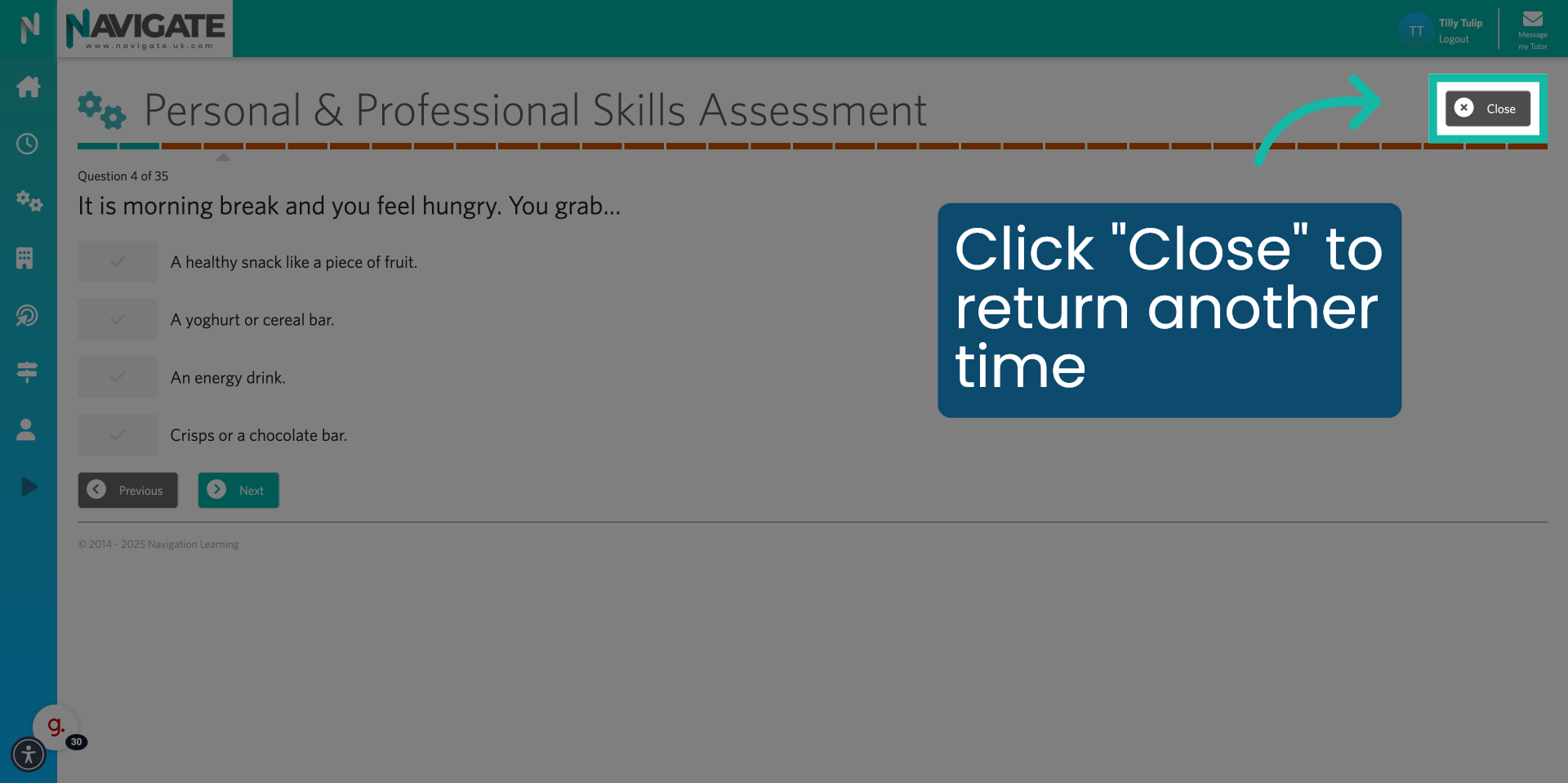
12. Click "Close"
Click close, if you would like to complete the assessment at another time.
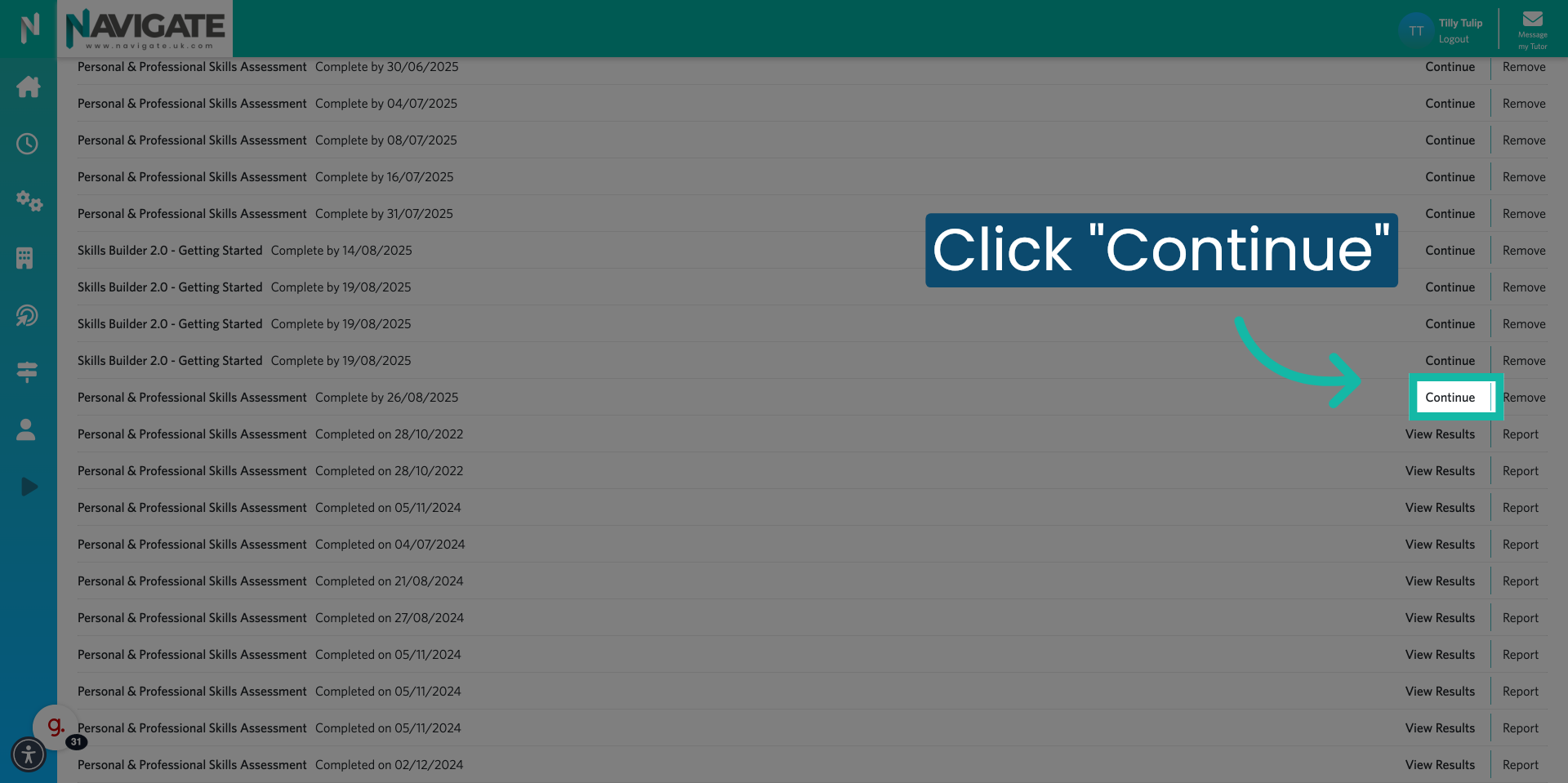
13. Click "Continue" to finish the assessment
When you are ready, return to the assessment and click on the continue button. To start the assessment from where you previously left off.